
[ad_1]
Technology tools for interactive learning can give students ways to discuss ideas, explain their reasoning, test predictions, and receive feedback. Teachers can use them to gather responses from the whole class, review student work, and decide what needs further attention.
These activities can support in-person, blended, or remote learning. A shared document can hold a discussion about a difficult passage. An argument map can help students examine competing claims. A simulation can let them investigate a relationship that is difficult to observe directly.
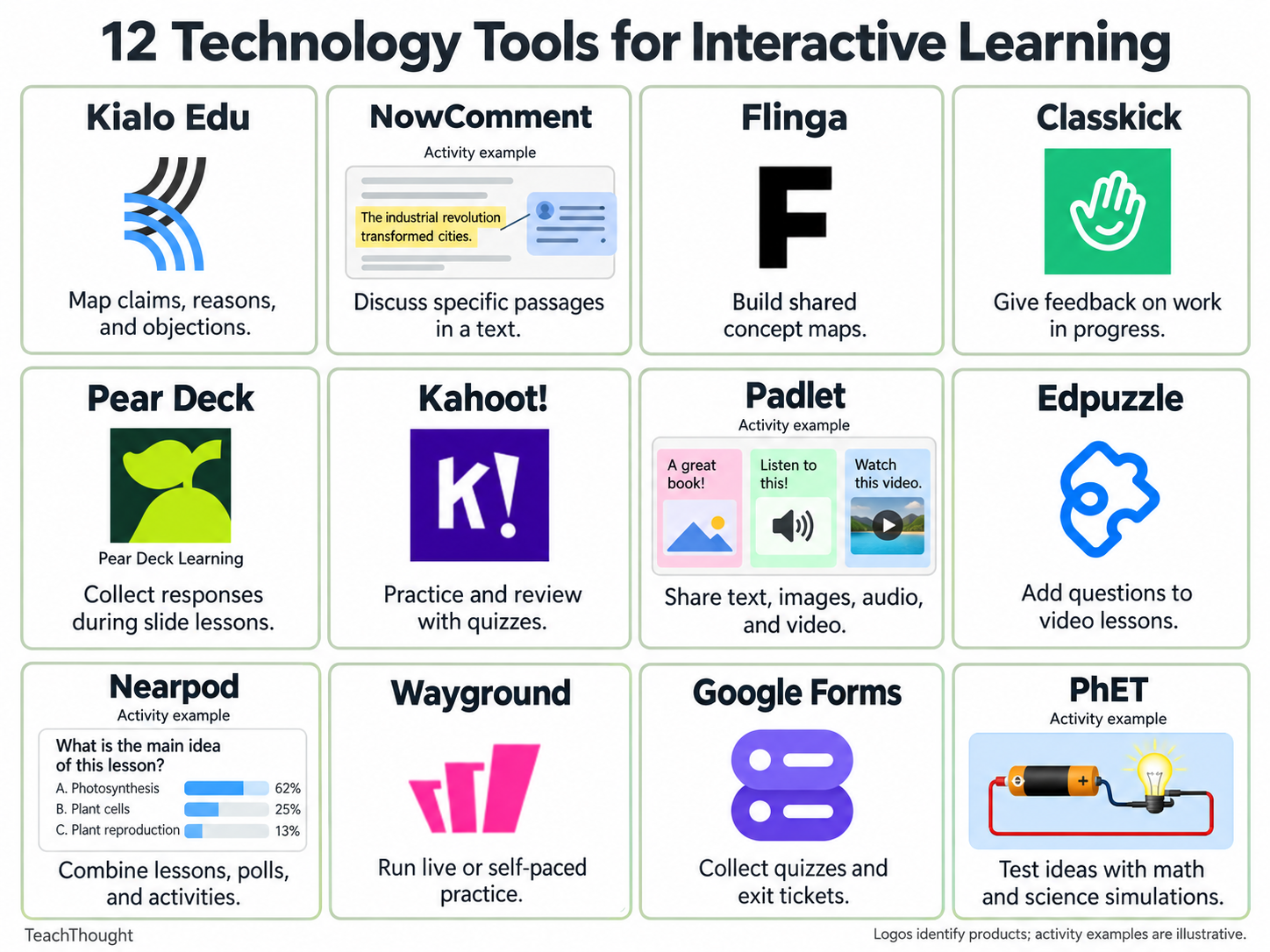
The twelve tools below support different kinds of participation, from collaborative reading and concept mapping to practice and assessment. Choose one based on what students need to do and how you will use their responses.
Useful for: Argument mapping and structured disagreement
Kialo Edu organizes a discussion around a central claim. Students add supporting and opposing arguments, then respond to particular points within the map. Its structure makes it easier to examine how a reason connects to a claim.
Classroom example: Ask students to consider the statement, ‘Schools should eliminate homework.’ Have each student contribute a reason, support it with evidence, and address an objection. Then ask them to revise a claim that is too broad or poorly supported.
Model the difference between an assertion, a reason, and evidence before starting. A large map can become difficult to follow, so begin with a narrow question. Kialo Edu is free; use its education platform for classroom discussions.
Useful for: Close reading and shared annotation
NowComment lets students hold threaded discussions alongside specific passages in an online document. Comments remain connected to the source material, making it useful for close reading, peer response, and comparing interpretations.
Classroom example: Share a short public-domain speech. Ask students to identify a claim, comment on the evidence offered for it, and respond to a classmate who reads the passage differently. Revisit disputed passages in the class discussion.
Introduce a simple annotation routine so the document does not fill with disconnected remarks. NowComment offers free accounts. Check document permissions and student account requirements before assigning work.
Useful for: Collaborative concept mapping
Flinga provides shared workspaces for collecting ideas and building concept maps. Students can contribute through a browser using a session code or link. Flinga Whiteboard is particularly useful for organizing concepts and showing connections among them.
Classroom example: After studying a local watershed, have small groups map relationships among land use, runoff, water quality, and wildlife. Ask each group to explain two connections and identify one relationship that needs more evidence.
Agree on what the positions and connections mean before students begin. A visually tidy map can still contain weak reasoning. Test participation permissions and check current account limits before planning a sequence of activities.
Useful for: Feedback while students are working
Classkick lets teachers create digital assignments, see student work as it develops, and provide feedback during the task. Students can work with drawings, text, and other media, giving teachers more to examine than a final answer.
Classroom example: Ask students to solve a proportional-reasoning problem and show two representations of their solution. Review work in progress and leave a question at the step where a student’s reasoning becomes unclear.
The free Basic plan currently allows 20 assignment slots and 500 student work pages per month. Each assignment slide a student works on counts toward that monthly total, so check whether the allowance fits your class size and planned use.
Useful for: Responses during slide-based lessons
Pear Deck allows teachers to add interactive questions to presentations. Students respond on their own devices, giving teachers information about understanding during a lesson.
Classroom example: During a lesson on argument, ask students to identify which piece of evidence best supports a claim and explain their choice. Use the responses to decide whether to revisit the distinction between relevant evidence and information that merely concerns the same topic.
Pear Deck can be useful for teachers who already teach with slides. Check its plan comparison before designing a lesson around particular response types or teacher dashboard features, since access differs between free and paid plans.
Useful for: Quiz-based review and discussion
Kahoot! lets teachers create quiz-based activities for review and practice. Its game formats can include points and competition, so consider how those features fit the task and the students.
Classroom example: In a science review, include incorrect answers that reflect common misconceptions. After students respond, pause to discuss why an answer seems plausible and what makes it incorrect. That discussion gives you more information than the score alone.
Check participant limits before using it with a whole class. Kahoot!’s current school pricing page lists a free Go plan with up to 10 participants per game; other plans and account types have different limits.
Useful for: Sharing work and responding to peers
Padlet provides a shared space where students can post text, images, videos, audio, and other materials. With comments enabled, students can respond to one another’s contributions.
Classroom example: During a literature discussion, students might post a passage that supports their interpretation of a character’s decision. Ask them to respond to a classmate whose interpretation differs, using the text to explain their agreement or disagreement.
Set a clear purpose for posting and responding. Review sharing permissions before assigning the activity, especially when students will upload recordings or identifiable work. Free accounts currently allow three active padlets.
Useful for: Questions and feedback within video lessons
Edpuzzle allows teachers to add questions and notes to videos and review students’ responses. It can support independent work, homework, or a video activity during class.
Classroom example: For a lesson on erosion, pause a video before the outcome of a demonstration and ask students to predict what will happen. Afterward, have them explain whether the observation supported their prediction.
Choose stopping points carefully. Too many questions can interrupt the explanation students are trying to follow. Edpuzzle’s free Basic plan currently provides storage for up to 20 activities.
Useful for: Lessons with several activity types
Nearpod combines lesson content with activities such as polls, quizzes, and open-ended questions. Teachers can lead a session or assign a lesson for students to complete at their own pace.
Classroom example: Begin a history lesson with a poll about a historical decision. Introduce primary-source material, then ask students to explain whether that evidence changes their initial judgment. Use their responses to guide the discussion that follows.
Nearpod is worth considering when you want several activity types within one lesson. Its free Silver plan currently supports up to 40 student joins per lesson, with additional limits on storage and access to some features.
Useful for: Live and independent practice
Wayground, formerly Quizizz, supports quizzes and other activities that teachers can use in live sessions or assign for independent completion. Some modes let students work at their own pace, and the platform also includes competitive features such as leaderboards.
Classroom example: For vocabulary practice, ask students to choose the meaning of a word as it is used in a passage. Review frequently missed items and discuss which context clues students used.
Review session settings rather than assuming that a self-paced activity removes competition. The free Starter plan includes basic question types and reports. Its documentation lists a 20-resource storage limit and notes that some features and limits differ by region.
Useful for: Exit tickets and short assessments
Google Forms is a practical option for collecting responses, creating short quizzes, and providing written feedback. It can automatically grade supported question types, while explanations and other open-ended responses may need teacher review.
Classroom example: An exit ticket might ask students to solve one problem, explain a step in their reasoning, and identify something they still find confusing. Review those responses before planning the next lesson or arranging small groups.
Check the form’s access settings before sharing it so students can open and submit it using the access method you intend. For more ways to structure these checks, see TeachThought’s 50 Everyday Formative Assessment Strategies.
Useful for: Testing predictions in science and mathematics
PhET Interactive Simulations offers free science and mathematics simulations from the University of Colorado Boulder. Students can manipulate variables and observe the results.
Classroom example: Using the Circuit Construction Kit, students can build a circuit, predict what will happen when they change it, and test their prediction. Ask them to record what changed and use their observations to explain the result.
Give students a question to investigate and a way to document their findings. Check the chosen simulation on classroom devices beforehand, including any accessibility features students will need.
How to Choose a Tool for Interactive Learning
Start with the learning task and the information you need from students. A short written response may be enough to reveal a misunderstanding; a simulation may be more appropriate when students need to investigate how variables relate.
- Instructional purpose: Identify what students will do and how their responses will inform feedback, discussion, or further teaching.
- Accessibility: Check relevant features such as captions, keyboard navigation, screen-reader support, readable text, and language options.
- Devices and connectivity: Test the activity on the devices and connection students will actually use. Provide an alternative when access is unreliable.
- Accounts and privacy: Review school requirements, student sign-in needs, and who can view submitted work.
- Preparation time: Consider how long it will take to create the activity, explain the tool, and review responses.
- Cost and limits: Check class-size limits, storage, question types, and which features remain available after a trial ends.
Begin with one activity you already teach. Decide what student responses would help you understand, then choose a tool that makes those responses practical to collect and discuss.
[ad_2]
Source link